In February 2008 a new alliance forum was introduced for Travian. This new forum supports public boards, confederation boards, alliance boards and closed boards. Below is a small tutorial on how to create all of those categories.
Starting out
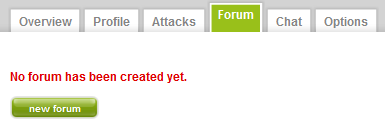
You can start making an alliance forum by clicking the  button when you are in the 'forum' tab of your alliance menu. When you click this button, you'll see a menu for making a new forum. As already said, it is possible to add four kinds of forums. They are all described below.
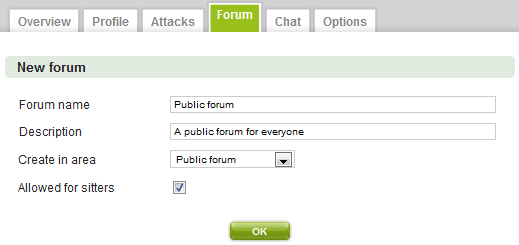
A public board can be read by anyone in the game. A board of this kind can be used for applications, announcements and more.
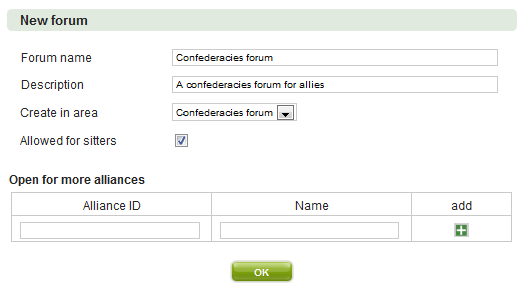
This kind of board is meant for alliances and their wings. When you view the menu for making a new board like this, you will see you have to add alliances who are able to read and post on this forum. This can be done with the alliance ID or tag. Your alliance can always use the forum; you do not need to add it. Clicking the '+' icon in the list creates an extra list item to add an alliance in.
You have also the possibility to allow or forbid sitters of authorised accounts to access. To do this just tick or untick the below shown check box.
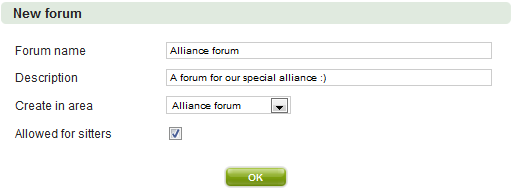
The Alliance board is the simplest of all boards meant only for your alliance members. The only thing you have to do is fill in the forum name and description and add the forum. This board can only be viewed and posted on by your alliance members.
You have also the possibility to allow or forbid sitters of authorised accounts to access. To do this just tick or untick the below shown check box.
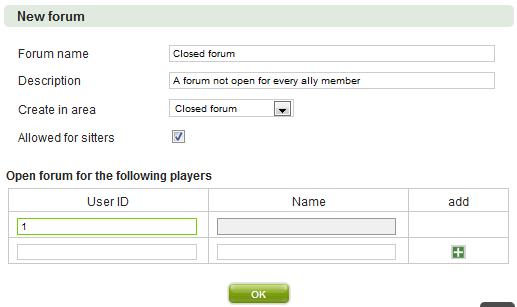
This type of board works pretty much the same as a confederation board. The board can only be viewed and posted on by people added in the list you will automatically get when trying to make a new board of this type. Players can be added by their ID or player name. The board will not be visible to anyone but people added to this list and the board admin(s). Again, you can add another item to the list by clicking the '+' button.
You have also the possibility to allow or forbid sitters of authorised accounts to access. To do this just tick or untick the below shown check box.
The results
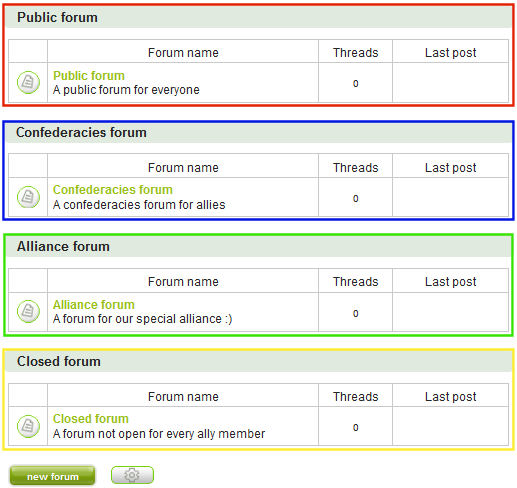
Below is an image of a forum you could get when following the steps used as examples above. Here the areas of the forum are marked. Red represents the public boards which can be read by anyone. Blue represents a board only accessible by members of alliances added to the forum. The green part is the alliance forums, which can be viewed and posted in by alliance members. Finally, yellow is a closed board which can only be read and posted on by players added to the forums.
When you click the  button, the images left of the forums change into small menus which can be used to edit your forum. Click a around those small menus and see what happens.
BBCode
The new forums only accept a specific set of BBCode entities. Below is a list.
The codes above only work for the .com forums. When using in another language you have to use the tags in the corresponding language. For example, the German tag for [village=] is [dorf=].
The [color=] tag can hold the following values: 'aqua', 'black', 'blue', 'fuchsia', 'gray', 'green', 'lime', 'maroon', 'navy', 'olive', 'purple', 'red', 'silver', 'teal', 'white', 'yellow' as well as process colour values in hexadecimal writing-wise as for example *00F or *0000FF (for blue).
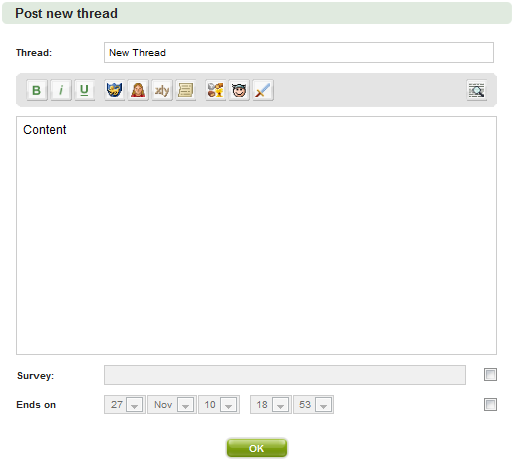
Alternatively you can use the buttons shown at the top of the text field:
Problems?

Just delete the link you put into the alliance option "link to the forum" and the problem will be solved.